Plan First, Code Second
The single most impactful habit is planning before implementation.
Use Plan Mode
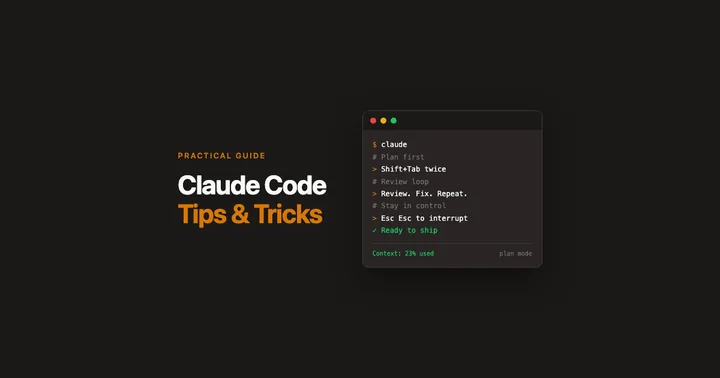
Press Shift+Tab twice to enter Plan Mode. This is where you should spend the most time.
Be specific about the behavior, constraints, and edge cases you care about.
Instruct Claude to ask clarifying questions.
Read the plan carefully before approving and push back when you disagree.
Use Constraints to Keep Claude on Track
Being specific isn't just about what you say in prompts. It's about the structural constraints in your codebase. The more precisely you express your intent, the better the results.
Ask Claude to write tests.
Ask Claude to write documentation.
Use typed languages.
Use state machines.
Iterative Review Loops
Ask Claude to review its own code, fix issues, and review again, in a loop until no new issues are found.
"Review this code. Fix any issues you find. Then review again. Keep going until you stop finding new problems."
Each pass catches things the previous pass introduced or missed.
Set Up Your Project for Success
CLAUDE.md Files
Every project should have a CLAUDE.md file. It's Claude's persistent memory for your project: coding conventions, architecture decisions, common pitfalls.
Start with
/init. This generates an initialCLAUDE.mdby analyzing your codebase.Update it when Claude makes a mistake. Wrong naming convention? Note it. Misunderstood a pattern? Note it.
The better your
CLAUDE.md, the less time you spend correcting Claude.
Keep each file under 200 lines. If it gets longer, use sub-directory CLAUDE.md files to scope instructions. Claude loads the relevant ones automatically.
Commit Often
Commit after every completed task. Clean rollback point if Claude goes sideways, and it makes parallel work with sub-agents and worktrees easier.
Calibrate Your Level of Oversight
These models are getting better all the time. Push them, but calibrate how much autonomy you give Claude based on the stakes.
Tier 1: Maximum Autonomy. Private Experiments.
Personal projects, private repos, exploratory prototyping.
Longest leash. Let Claude work autonomously. Test the output, try things, skip detailed manual code review.
Tier 2: Moderate Oversight. Public Personal Work.
Public repos, open source contributions, side projects where your reputation is visible.
Claude still does most of the work. You may not review every line, but make sure things are tested before they go out.
Tier 3: Full Scrutiny. Professional Work.
Anything at your job, production systems, team codebases.
Shortest leash. Work slower. Work in smaller pieces. Fully review all code. Fully test before shipping.
Watch what Claude is generating in real time. If it can't solve a problem cleanly, it will sometimes take a shortcut. It will say things like "let's just do this for now and come back to it later," or silently switch to a different approach.
When that happens, press Escape twice to interrupt and discuss. Don't let Claude wander.
In all three tiers, Claude writes the code. What changes is the level of review, testing, and oversight. As models improve, gradually extend the leash.
Manage Your Context Window
Context rot is real. As your context window fills up, quality degrades. This matters most at Tier 3.
Monitor Your Context Usage
Ask Claude to set up a status line that shows your context usage in the bottom left of the terminal, color-coded green, yellow, and red. Green means plenty of room. Yellow means start wrapping up. Red means quality is about to degrade.
Clear Sessions, Not Your Progress
When your context window is filling up but you're mid-task, don't power through. Tell Claude: "I need to clear this session, but I want to continue where we left off. Set that up for me." Claude will write to its memory or generate a handoff prompt. Then run /clear, paste the prompt, and keep going with a fresh context window.
Built-in Features Worth Using
Sub-Agents and Agent Teams
Claude can spawn sub-agents. Separate Claude instances that work on tasks independently and report back. Use them liberally.
They parallelize independent tasks. They specialize, so one agent researches while another implements and another reviews. They also protect your context window. Only the summary comes back.
Once you're comfortable with sub-agents, the next step is git worktrees. If you're running multiple Claude sessions on different features, they'll step on each other in the same working directory. Worktrees give each session its own isolated copy of the repo.
Hooks
Hooks let you run custom commands at specific points in Claude's workflow. Before a tool executes, after it completes, when a session starts, when Claude finishes responding.
Linting and formatting. Auto-run Prettier or ESLint after Claude writes code.
Safety guardrails. Block dangerous commands like
rm -rfbefore they execute.Custom validation. Run your own checks before Claude commits or deploys.
Turn Repeated Tasks into Skills
If you find yourself asking Claude to do the same thing more than twice, ask it to create a skill instead.
"I keep asking you to do X. Create a skill for this so I can just invoke it next time."
Stay Up to Date
Claude Code ships updates frequently. Some are workflow-changing. Make it a habit to update and explore what's new. Features like /voice, /remote-control and agent teams were recent additions that changed how I work.
Plugins: Start Official, Then Expand
Start with the official plugins, then add third-party as needed.
Official Plugins
Code Simplifier simplifies and refines code for clarity and maintainability after you write it. Catches over-engineering.
PR Review Toolkit is a suite of specialized review agents. Code reviewer, silent failure hunter, test analyzer, comment analyzer. Run these before committing.
Third-Party Plugins
Context7 fetches up-to-date documentation for external libraries. Instead of Claude relying on potentially outdated training data, Context7 pulls the actual current docs.
Serena MCP Server provides semantic code search and navigation. It understands symbols, references, and code structure rather than just text.
CLI Tools vs. MCP Servers
Prefer CLI tools over MCP servers when both options exist. CLI tools are simpler and use less context. Use MCP servers when they offer capabilities CLI tools can't, like Serena's semantic code understanding. For things like Playwright and GitHub, use the CLI.
External Tools That Complement Claude Code
Obsidian as a Dev Brain
Obsidian is a markdown-based knowledge management tool. Ask Claude to set up an Obsidian vault as a "dev brain" for your work. It gives you structured, browsable project context across sessions and a place to track decisions and maintain living architecture docs. Useful for managing multiple projects or work that spans many sessions.
Wispr Flow
Wispr Flow is a voice-to-text tool. Instead of typing long prompts, just talk. Useful for describing complex requirements naturally and staying in flow without switching to a keyboard.
Principles
Plan first, always. Time spent in Plan Mode is almost never wasted.
Teach Claude, don't just correct it. Every mistake is an opportunity to update
CLAUDE.md.Constrain with structure. Tests, types, docs, and state machines keep Claude focused.
Iterate to convergence. Don't settle for a single review pass. Loop until stable.
Protect your context window. Clear often, delegate research to sub-agents, monitor usage.
Match scrutiny to stakes. More rope on experiments, less on professional work.
These practices compound. The more of them you adopt, the more you can trust Claude to do. The faster you move.